Updated Student Overview Page (beta)
Last updated: August 4, 2026
The student overview page is a redesigned experience in Student Success that makes it easier to scan student indicators, find students quickly, and move through daily workflows. It also improves accessibility and performance, while creating a stronger foundation for future reporting and workflow improvements across Panorama.
About the beta experience
The new overview page launches on July 8, 2026. During this time period, there will be a toggle in the upper-right corner of the student overview page that allows users to switch between the new and legacy experiences. There will also be an in-product guide and poll so clients can share early feedback.
On September 30, 2026, the new experience will become the default.
Why Panorama is updating the student overview page
The student overview page is one of the most visited pages in Student Success. Educators and administrators use it every day to review academic performance, behavior, assessment, attendance, and life skills data.
The redesigned experience focuses on making that information easier to interpret, improving page performance for large rosters of students, and making the experience more accessible for all users. It also supports a more consistent experience across Panorama.
How to switch to the new student overview experience
Open the student overview page and select the toggle on the top right side of the page to enter the new view.
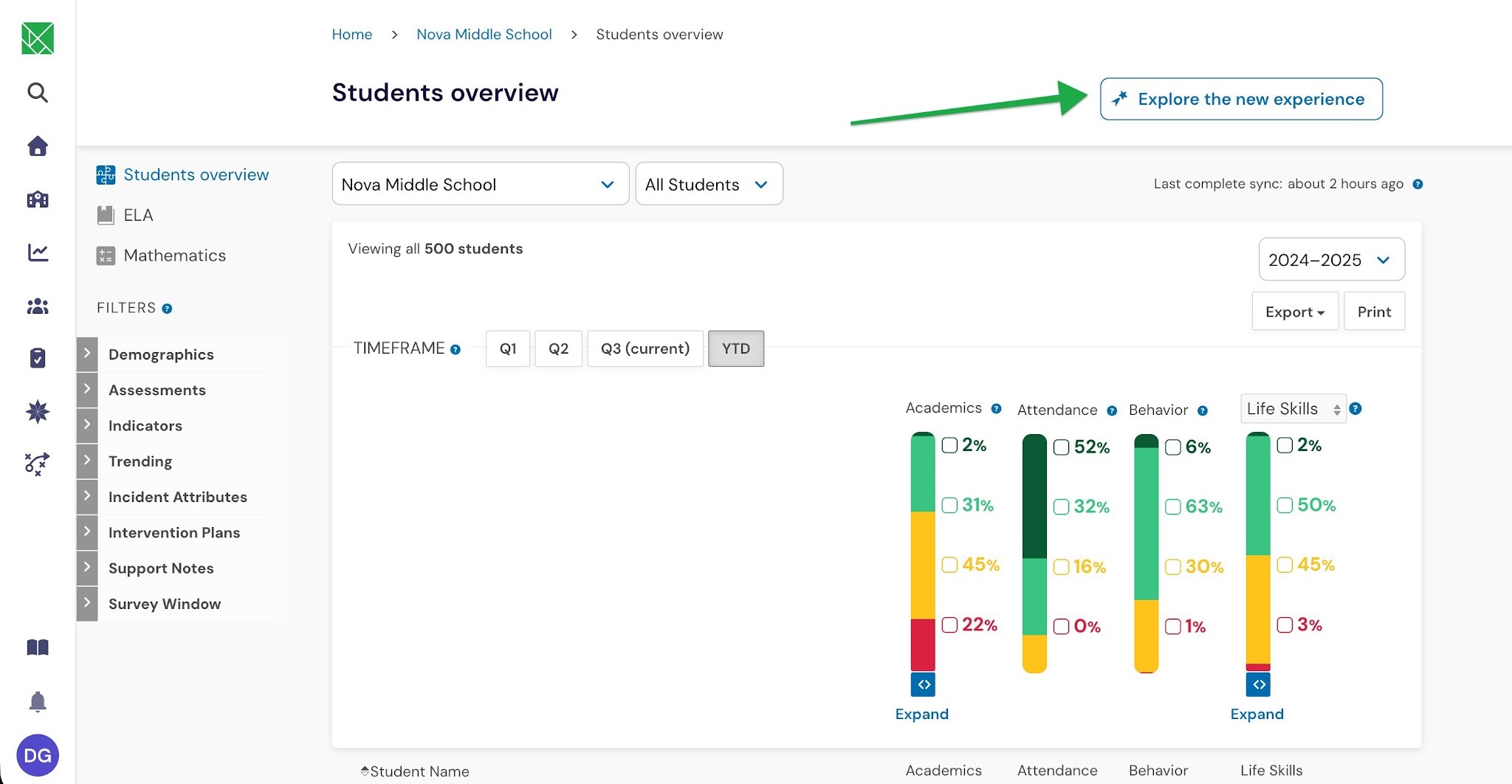
(National application screenshot - Iowa view may vary slightly)
To switch back to the legacy view, select the toggle once more.
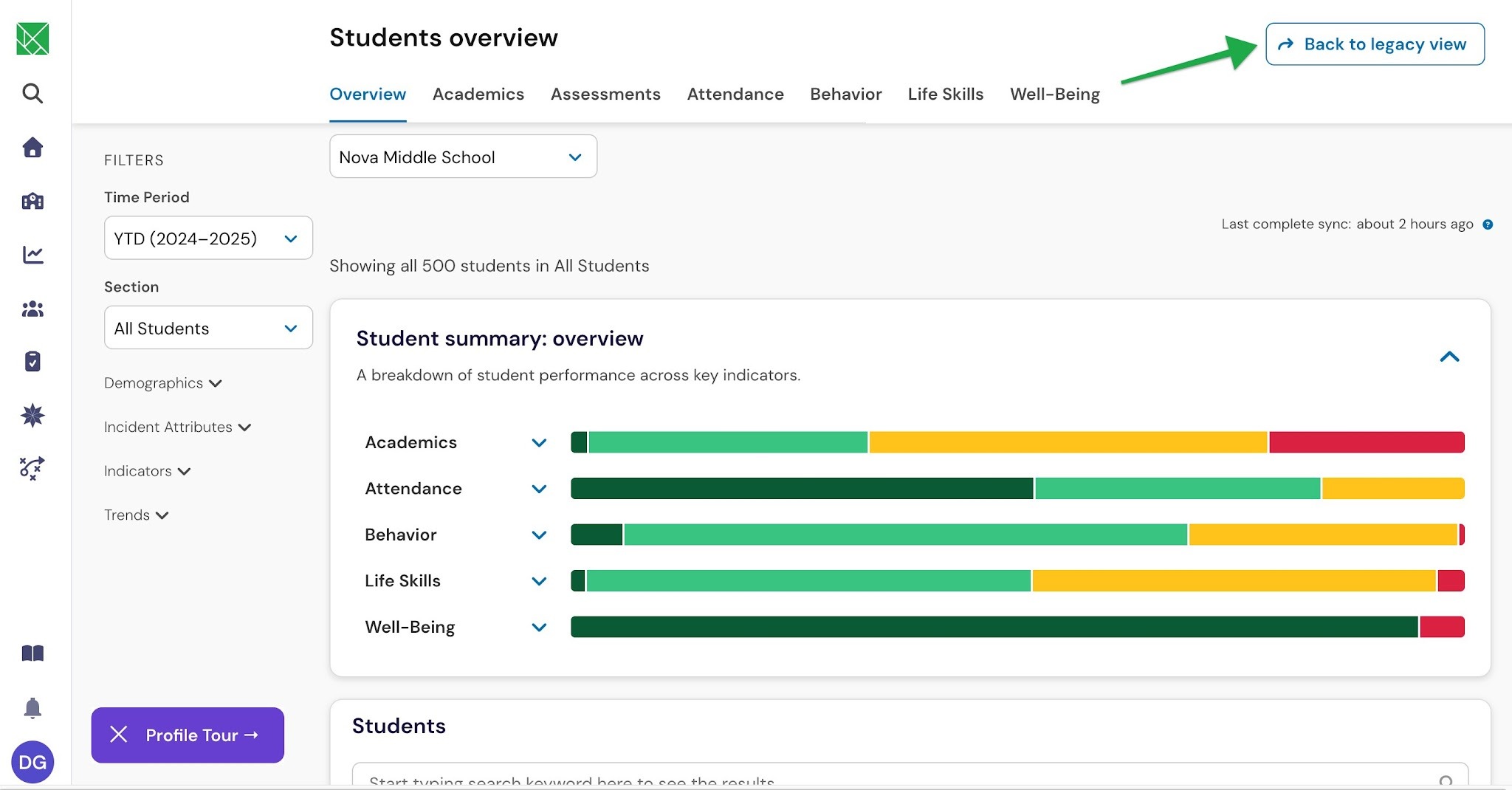
(National application screenshot - Iowa view may vary slightly)
How the redesigned visualizations work
The new visualizations are designed to be more accessible and more consistent across Panorama. They make it easier to scan student performance at a glance and compare indicator areas more quickly.
The updated layout replaces the older expand-and-collapse pattern with a cleaner way to move through the data. This helps you compare indicator areas more quickly and review the same student information with less friction.
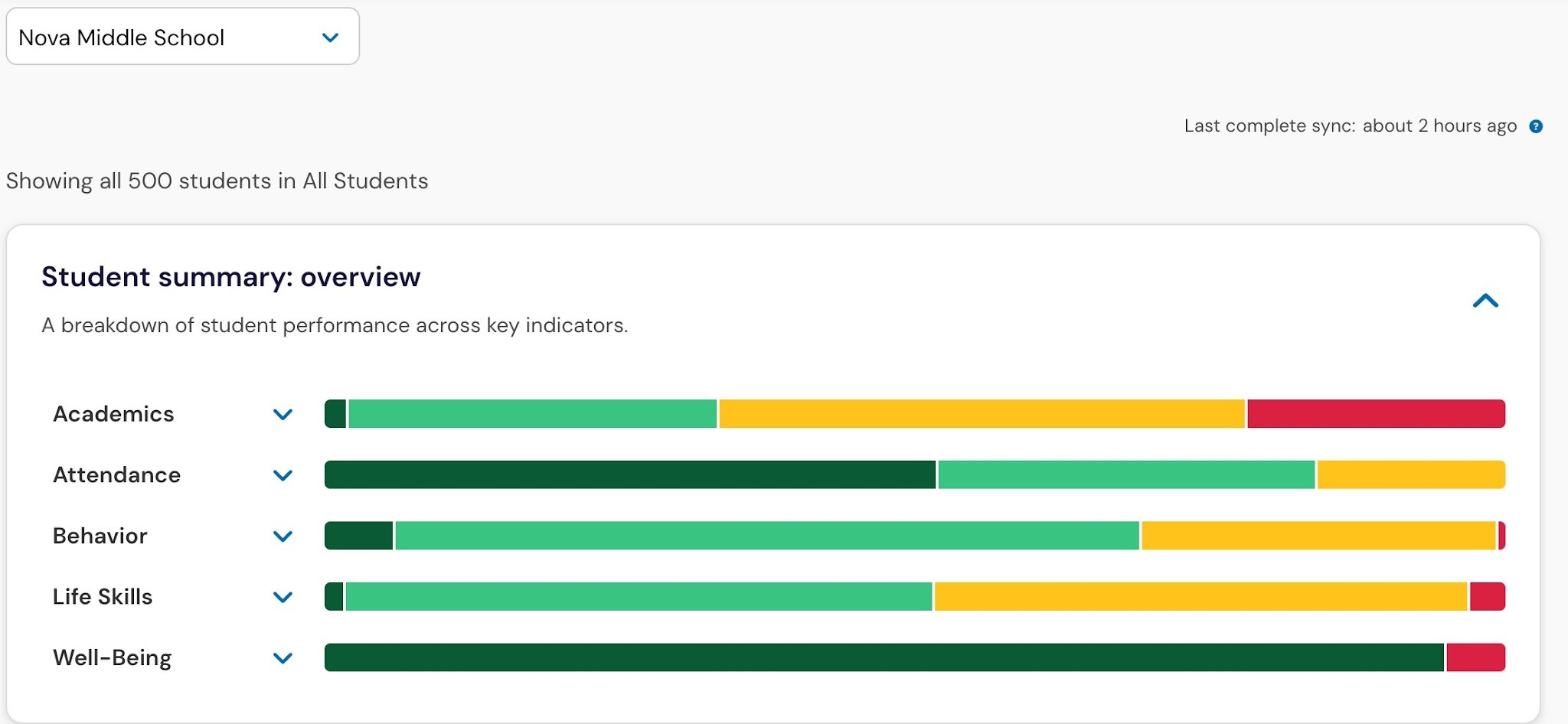
(National application screenshot - Iowa view may vary slightly)
How category breakdowns work
The student overview page uses accessible expand controls to help you review category breakdowns.
Open the student overview page.
Find the indicator area you want to review.
Select the expand control to open the category breakdown.
Review the number and percent of students in each category.
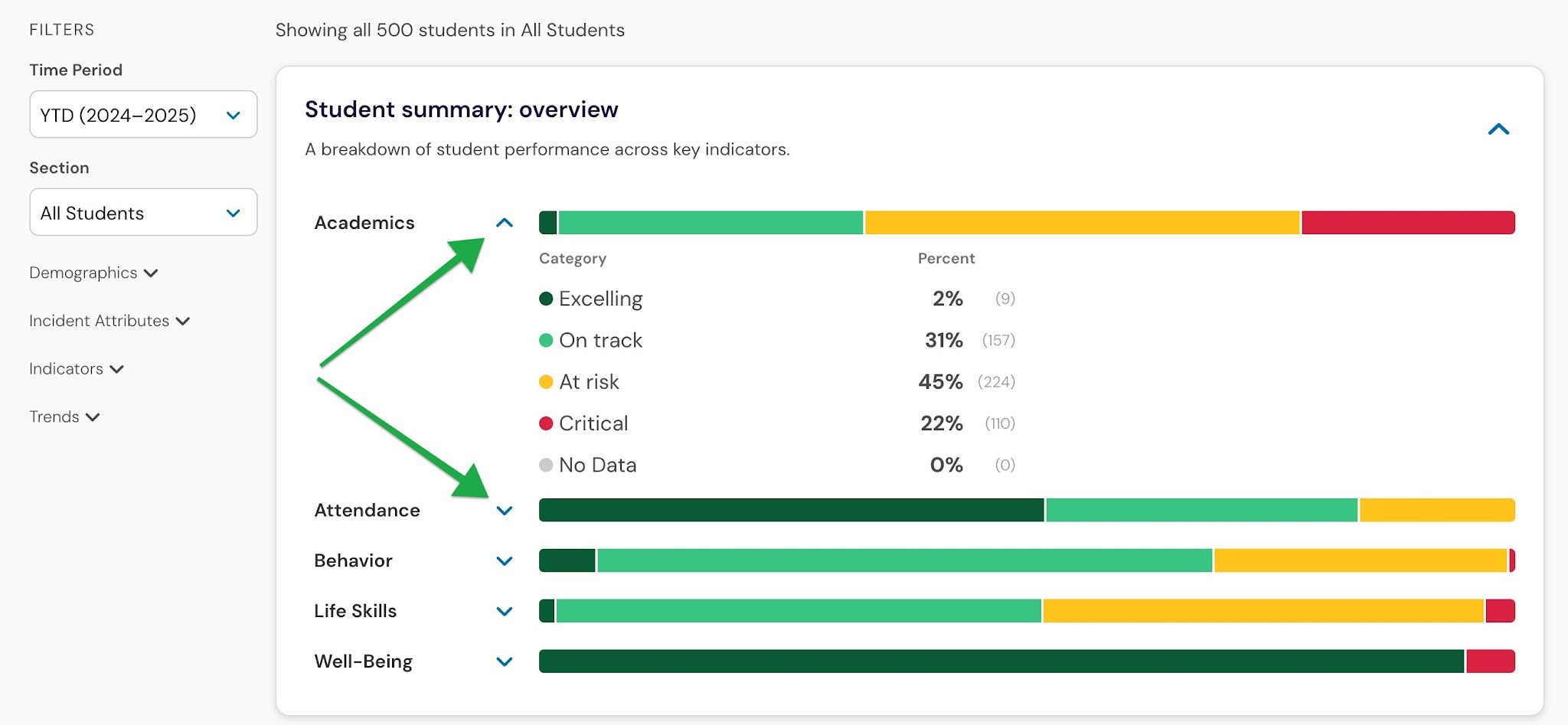
(National application screenshot - Iowa view may vary slightly)
The updated layout keeps the same information in a format that is easier to scan and more consistent with other data layouts in Panorama. Once you expand each category, you can see category-level student breakdowns in an accessible format.
How to search for a student
The new students table includes a search bar. Use it when you need to find a student quickly on your roster of students.
Open the student overview page.
Go to the students table.
Enter a student name in the search box.
Review the filtered results to find the correct student quickly.
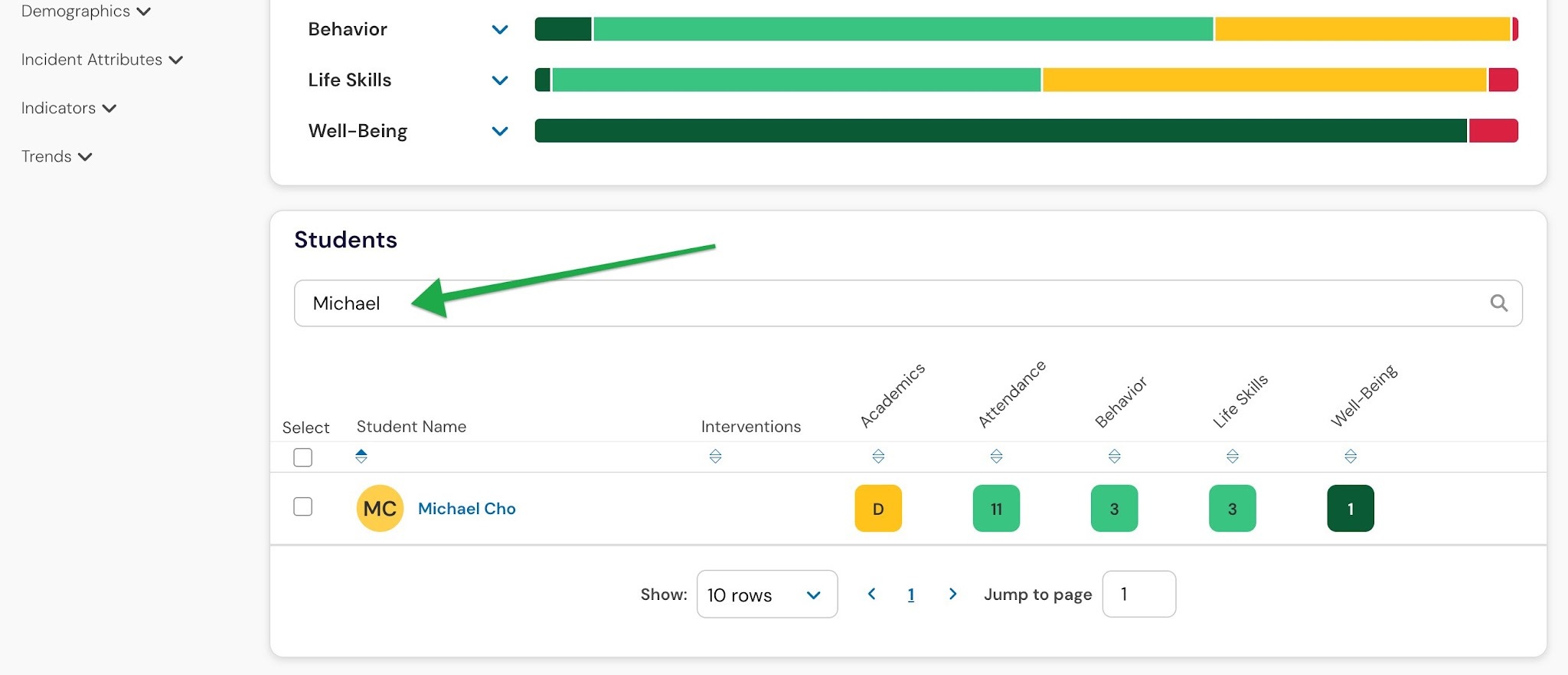
(National application screenshot - Iowa view may vary slightly)
By using the student search feature, you can find a specific student faster than sorting by name alone. This is especially helpful in meetings and time-sensitive conversations, where educators need to find a student quickly.
How to review intervention indicators
The new students table makes intervention status easier to understand at a glance.
Open the student overview page.
Review the intervention icons in the students table.
Hover over the intervention indicators to see supporting details.
Use the counts and hover text to understand what supports are already in place.
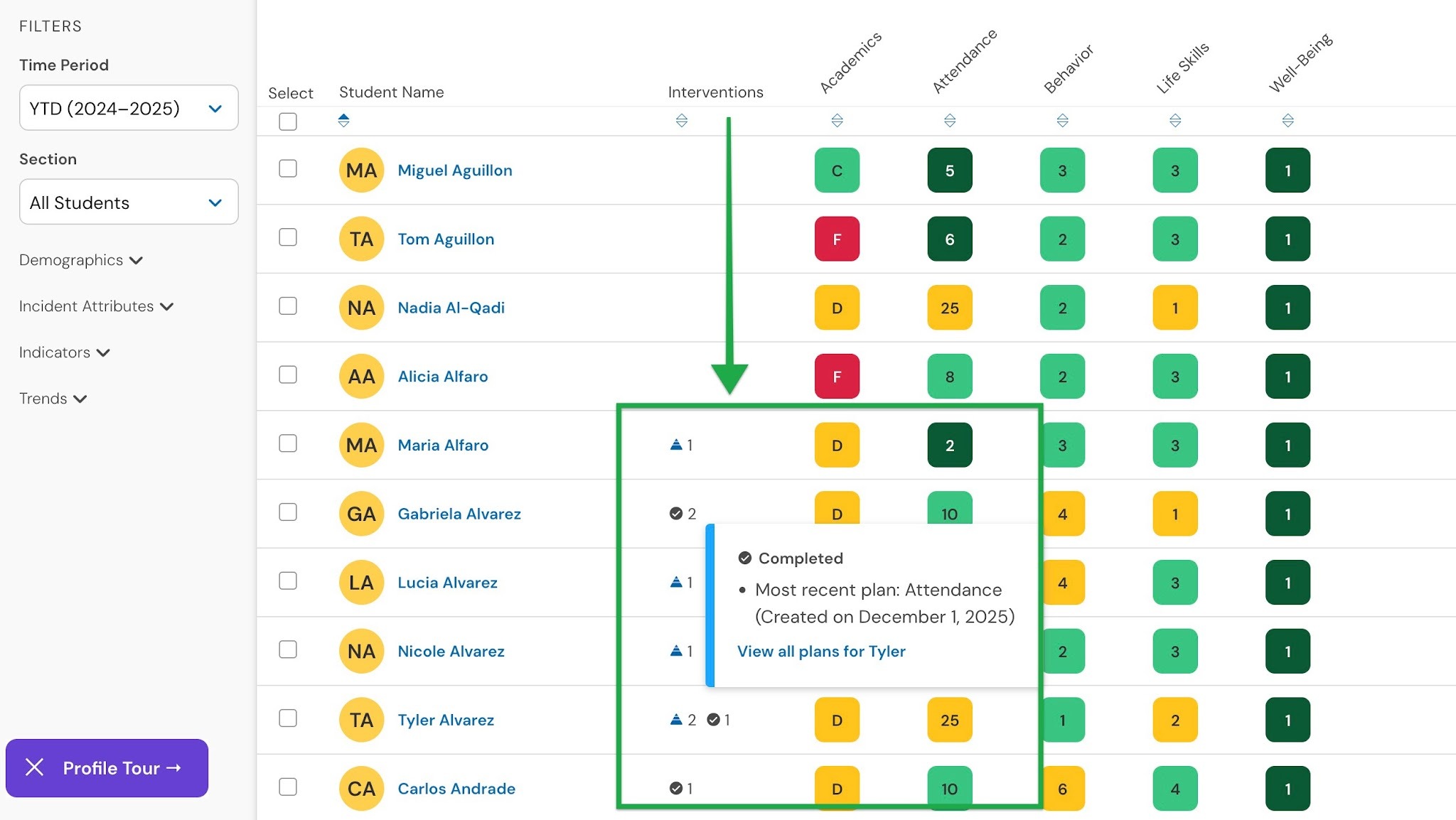
(National application screenshot - Iowa view may vary slightly)
In the current experience, intervention flags can be hard to interpret without hovering. The redesigned table adds icons, counts for active and completed interventions, and hover details that make the information easier to scan so you can understand intervention status more quickly without extra guesswork.
How to move through indicator tabs
The student overview page organizes student information into tabs, making it easier to move between indicator areas and review different aspects of student performance.
Tab | What you can review |
Academics | Academic performance indicators and subject-area breakdowns |
Assessments | Assessment data and additional assessment views |
Attendance | Attendance indicators and attendance-related trends |
Behavior | Behavior indicators and behavior-related information |
Life Skills | Life skills indicators and related student data *Only available for districts that have purchased Panorama SEL surveys |
Well-being | Well-being indicators and related student data *Only available for districts that have purchased Panorama SEL surveys |
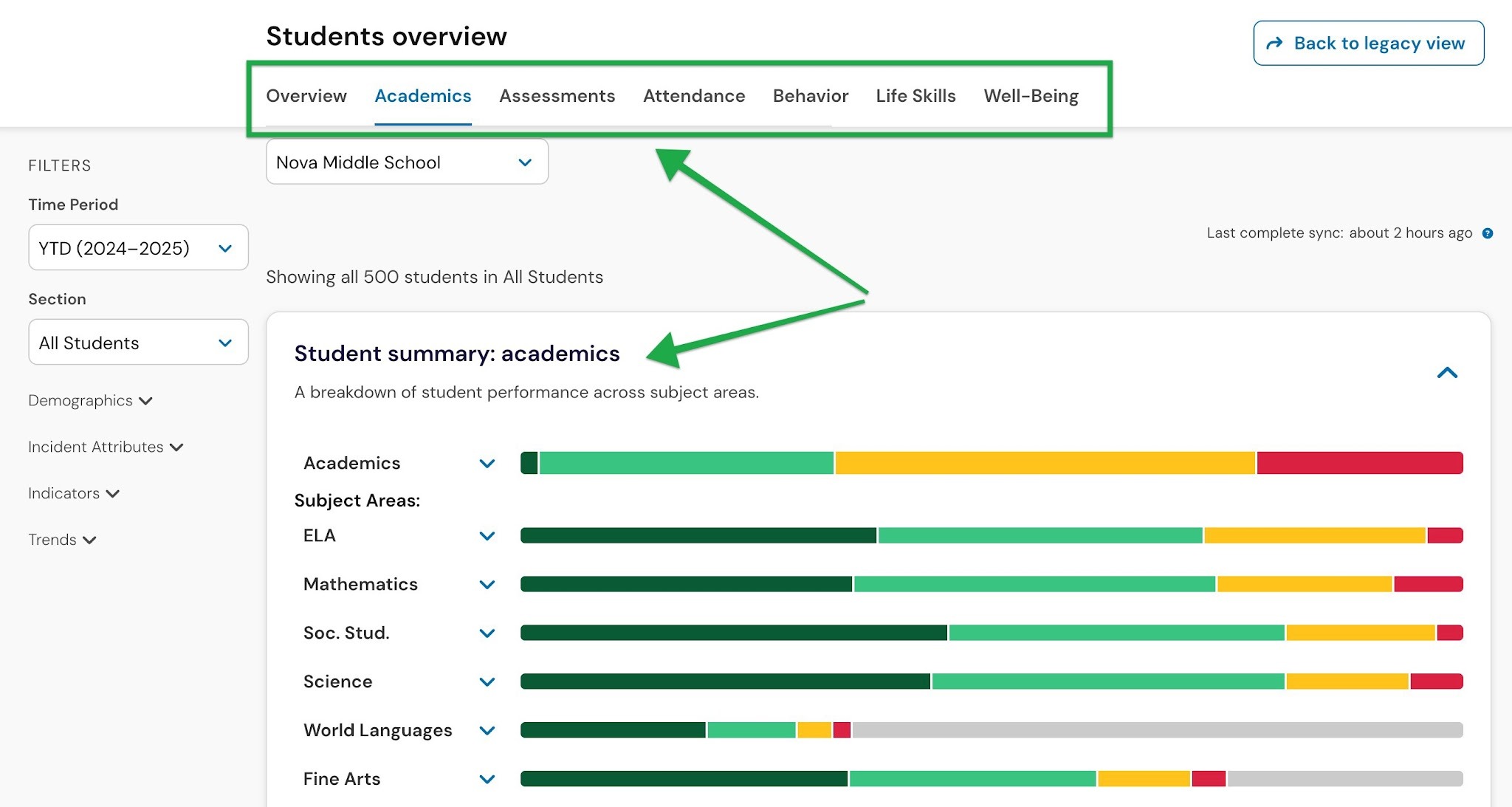
(National application screenshot - Iowa view may vary slightly)
The tabs organize related student information into dedicated views, making it easier to navigate between indicator areas while keeping the most relevant information together. This structure supports a more consistent experience across Panorama and future enhancements to student reporting and analysis.
Frequently Asked Questions
Can users switch back to the legacy overview page?
Yes. Users can toggle between the new and legacy experiences during beta. The new student overview experience will become the default on September 30, 2026 and the toggles will be removed.
Will the new overview page still feel familiar?
Yes. The goal is to keep the core overview workflow familiar while making the page easier to scan, more accessible, and faster to use in day-to-day work. You will still have access to all the same features you did with the legacy view.