User Role Cleanup October 17th, 2025
Last updated: July 1, 2026
Update 10/20/25 - The role cleanup and reload in EdPortal was completed on Friday, Oct. 17th, as scheduled. FastBridge has also completed a role cleanup in their system. Panorama is expected to complete theirs in the next several days.
Ed Portal, FastBridge and Panorama do not currently process deleted or ended user role assignments from the district student information system. Instead, we periodically remove and reload all user permissions to get rid of ones that no longer exist to prevent inappropriate access to data. This year that process will begin October 17th.
Action required:
Student information system managers and school leadership should review what user roles are available, which staff need them and then remove obsolete user roles and assignments from their student information systems and ensure staff primary email addresses are accurate. Additional details and instructions are below.
When:
User role cleanup is scheduled to occur after hours on Friday, October 17th in the Iowa Education Portal (Ed Portal). The FastBridge and Panorama part of the process will likely be in the week following the Ed Portal cleanup.
What will happen:
All FastBridge and Panorama Student Success roles and assignments will be deleted from Ed Portal after business hours on Friday, October 17th.
The regular nightly process will reconnect user roles to Ed Portal accounts based on the user roles that are actively assigned in the district’s student information system (SIS) and matching email addresses.
Users whose role successfully connects to their account will receive an email from noreply@iowa.gov indicating they have role(s) assigned/access granted.
Following Ed Portal’s cleanup, both FastBridge and Panorama will conduct a similar process to remove all of the user permissions in their systems, allowing them to reload as users log back in via the Iowa Ed Portal.
Your action needed to prepare:
Leaders and student information system data entry managers:
Talk with your student information system manager about removing obsolete or unwanted FastBridge or Panorama Student Success user roles assigned in your SIS. We suggest doing this prior to October 10th.
Review available roles for FastBridge and for Panorama Student Success against your staff needs.
Remove buildings and roles for users that are no longer appropriate for the user's work or for users who have left.
Pay particular attention to who is assigned with the FAST District Manager role. We suggest selecting only to 1-3 people with the right knowledge/skills. Users with this role can break the system if they don't have proper training.
Remove any FAST Group Proctor or FAST School Manager roles - both are obsolete.
Remove excessive role assignments - there are a high number of users who have more user roles than are needed and it can cause issues periodically. Lower level roles are nested in each of the systems. It's a good time to review the guidelines and instructions for user role assignment.
Examples:
FAST District Managers should not have any other FAST roles at buildings or in the district.
FAST Specialists do not need the Classroom User role.
Panorama District Users do not need any other roles, unless they are also a teacher who wants to view their own roster, in which case they would also need the Classroom User role.
Confirm that the staff members' primary email addresses in your SIS are accurate and are their school email. This is super important for Infinite Campus districts when the staff member is also a parent of a student. Failure to do this will be the #1 cause of staff access issues after the cleanup.
If you do update the email address in your SIS, it's important to let the staff member know to create a NEW Okta account with the correct email address and log into Ed Portal with that account at least once prior to October 17th. DO NOT update the email address on the existing account. After the cleanup, they will need to begin using their new Okta credentials whenever logging into Ed Portal to have access.
SIS Manager - For this purpose, "remove" means remove completely by removing the role from the assignment or deleting the assignment, whichever your system allows.
Communicate to staff that they may receive an automatic email after the Ed Portal cleanup about having roles assigned and that there is no need to be concerned by this message.
Troubleshooting post cleanup:
If a staff person loses access during this cleanup, start by checking the following:
Does the person’s email used to log into Ed Portal match their email in your SIS? If not, they will need to Create a new account for EdPortal
Does the person have a valid role and building assigned in the SIS?
If both of these are confirmed and were in place for overnight processes to run, please use the FastBridge or Panorama ticket system or support team email at support_iowa@panoramaed.com or iowafastbridgehelp@renaissance.com to get assistance.
If FastBridge or Panorama look different when logged in after the cleanup:
The user likely had a higher level role or locations assigned in the previous year that is no longer entered in the school’s student information system (SIS) and was removed by the cleanup process. If users are missing functions that are required for their job after the cleanup, they should contact their school’s FastBridge District Manager or leadership team to discuss appropriate role options.
FastBridge
Look first at the role that is visible when the user arrives in the FastBridge system. The visual below shows what a Specialist should see upon login. The first tab shows the user role, the user role is also indicated in the upper right corner of the page, and when clicking on the initials in the upper right, the options will be limited to a Teacher View selector.

This will be most apparent if a user had a District Manager role previously and now has Specialist or a Specialist now has Classroom User (teacher) permissions. The highest level role is active immediately upon login and with the removal of the higher level role, the options under the initials icon will change with a lower role.
Panorama
In Panorama, a change in roles can be a bit more subtle unless making a big jump down in roles. For someone going from a District User to a Building User role, for example - at a glance the home page may look the same. The location name in the upper left hand and the name of the overview report will identify whether the user is at a district or school level homepage.
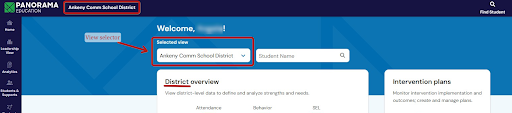
Going from access to multiple buildings to one building is another example.The presence of a view selector (location) shown above vs no selector can be an indicator of access changes removing buildings.
Questions:
Contact the Iowa MTSS support team at support_iowa@panoramaed.com or iowafastbridgehelp@renaissance.com. Please do not contact the Ed Portal help desk for assistance related to this cleanup project.