Logging in for the first time - Single sign on setup
Last updated: July 1, 2026
These instructions below are for those who have already created their Okta account. Anyone who has not created an Okta account should follow instructions here to first create your Okta and Iowa Education Portal account.
Questions/problems with Okta or EdPortal? The Iowa EdPortal team is managing this transition. Contact them at ed.portal@iowa.gov or 515-725-2040
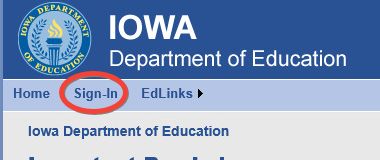
Click Sign In on the blue bar
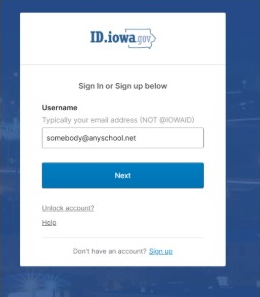
Enter your email address, which is your Okta username and click Next.
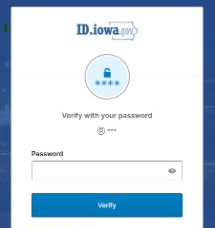
Enter your Okta password and click Verify
Follow additional instructions on screen to complete verification - this will depend upon which authentication methods are selected in your Okta account.
Once logged in, select the building name in the upper right corner (required for the proper links to populate). District Managers may select the district name.
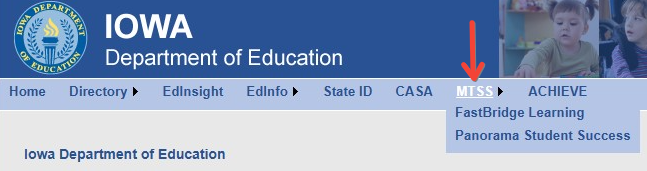
Hover over MTSS on the menu bar to display the link to Panorama Student Success.
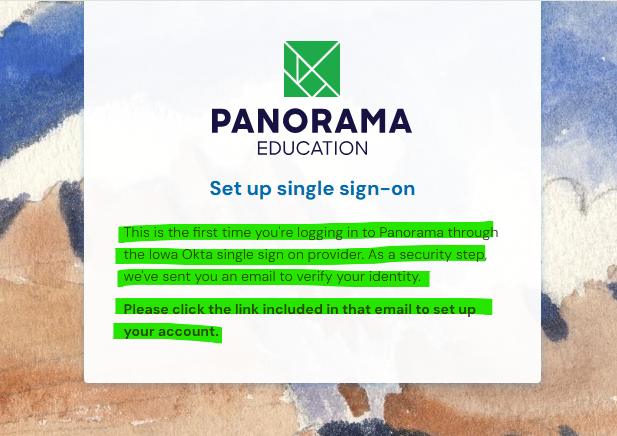
When you click on MTSS>Panorama Student Success in EdPortal, the message below will appear on the screen. Check your email, as directed.
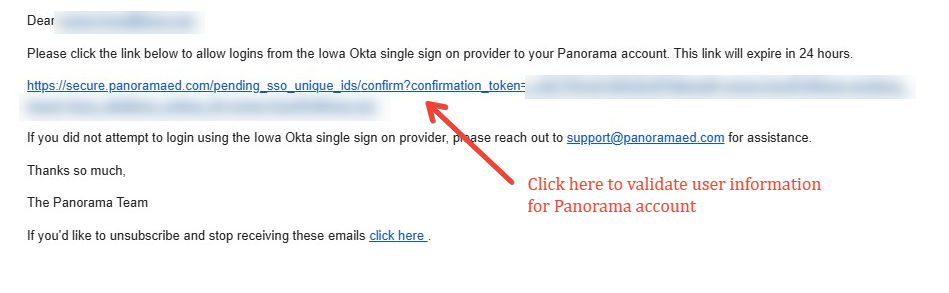
Within a few moments you should have an email from noreply+ia@panoramaed.com that looks like this. If you don’t see an email after a minute or so, check your spam and junk mail folders. Click the link in the email.
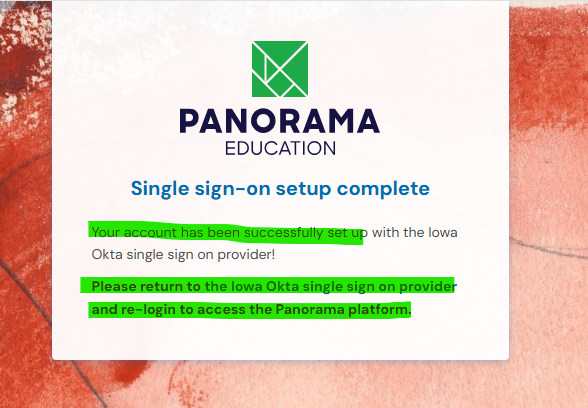
You will be redirected to a confirmation page that looks like this. Do not use the "Iowa Okta single sign on provider" link on this confirmation page to get back to EdPortal. Go back to the EdPortal page instead.
Once you get back to the EdPortal site, you may need to click the Sign In button again. Then select MTSS> Panorama Student Success. There may be a delay the first time the Panorama page loads after the transition.